

If I had to boil this article down to one point, it’s this: a NetSuite integration for a solar company usually fails because of data, controls, and follow-up – not because the connector exists.
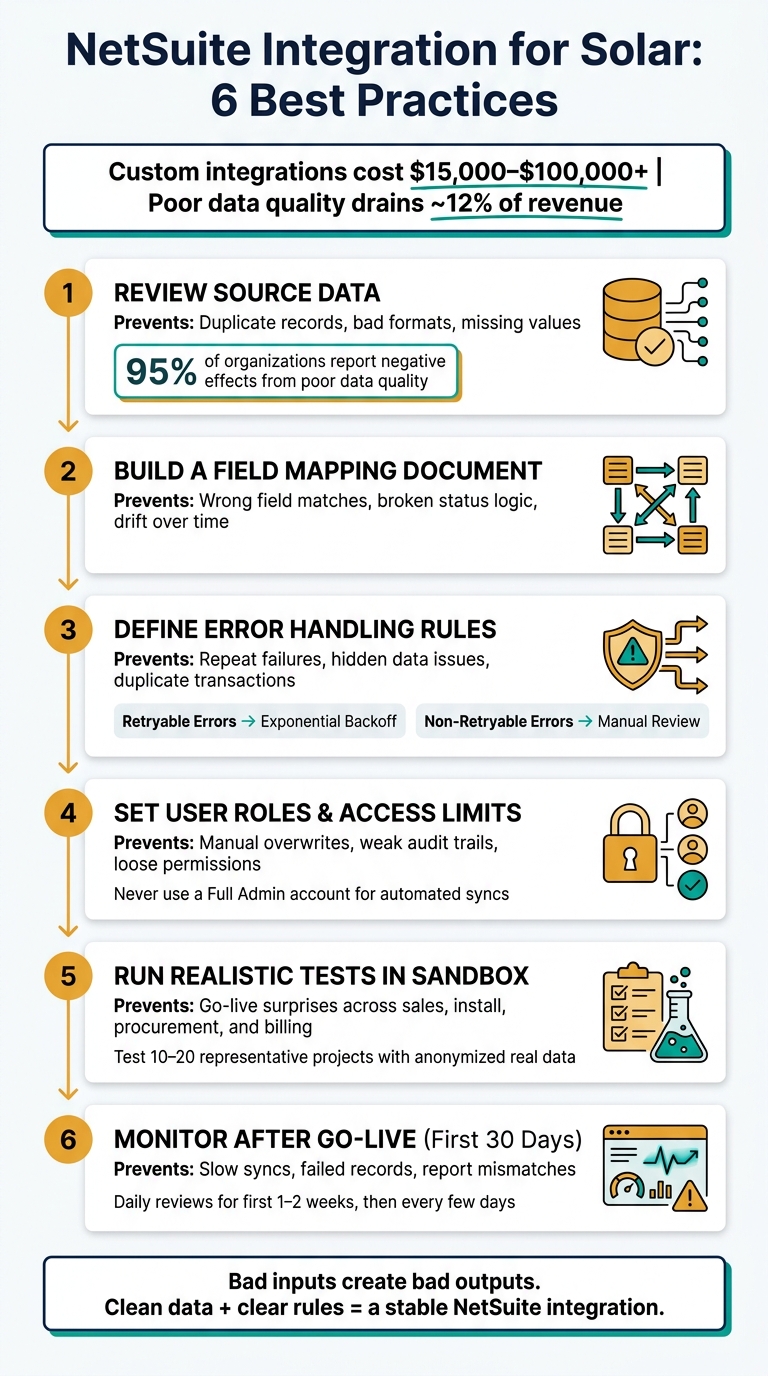
Custom integrations can cost $15,000 to $100,000+, and poor data quality can drain about 12% of revenue. So before I connect CRM, project tools, field apps, financing platforms, and inventory systems to NetSuite, I’d make sure six things are in place:
- Clean source data first
- Map every field and owner
- Set rules for sync failures
- Lock down user access
- Test full project flows in sandbox
- Watch results closely for the first 30 days
Here’s the simple takeaway: bad inputs create bad outputs. If customer records, project dates, serial numbers, financing statuses, or invoice fields are inconsistent, NetSuite will just spread those issues into billing, inventory, and reporting.
A quick snapshot of what each step helps prevent:
| Step | What it helps avoid |
|---|---|
| Review source data | Duplicate records, bad formats, missing values |
| Build a field map | Wrong field matches, broken status logic, drift over time |
| Define error rules | Repeat failures, hidden data issues, duplicate transactions |
| Set roles and access | Manual overwrites, weak audit trails, loose permissions |
| Run realistic tests | Go-live surprises across sales, install, procurement, and billing |
| Monitor after launch | Slow syncs, failed records, report mismatches |
If I were planning a solar NetSuite integration, this is the checklist I’d want in front of me before go-live.
1. Review Source Data Before You Connect Anything
Most NetSuite integration failures start with bad source data, not the connector.
If the records going in are messy, NetSuite will carry those same problems into financials, projects, and inventory. That’s why cleaning data before you map fields matters so much. Experian research found that 95% of organizations deal with negative effects from poor data quality, and companies say they lose about 12% of revenue because of inaccurate data [3].
List Systems, Record Types, and Data Owners
Start by listing every source system, the record types each one sends, the sync direction, and one named owner for each data domain.
That usually includes systems like:
- CRM
- Design/proposal
- Project management
- Field service
- Procurement
For each system, note whether data moves one way or both ways. Then assign a clear owner for each domain. For example, Sales Operations can own CRM data, the Project Manager can own project records, and the Warehouse Manager can own inventory and serial numbers.
That kind of ownership makes root-cause analysis much faster when integration errors show up. Instead of guessing who should fix what, you know exactly where to go.
Pay close attention to project address, utility, rebate code, equipment serial number, and commissioning date. Before mapping starts, flag blanks, invalid entries, and free-text values where a standard code should be in place.
Standardize Formats and Remove Duplicates
Before mapping, standardize dates, currency, numbers, units, and dimensions. Each field should use one format across every source system.
For U.S. operations, that means:
- Dates in MM/DD/YYYY
- Currency in USD with two decimal places, like $15,000.00
- Numbers with commas for thousands and periods for decimals, like 1,500.75
- System size stored in kW
- Construction dimensions in imperial units
Utility names should also use one approved value. After that, remove duplicates from customers, projects, and items.
Use matching rules like these:
- Customers: email, phone, or full U.S. address
- Projects: site address + utility + customer
- Items: SKU + manufacturer part number
Duplicates create all kinds of headaches: double-counted revenue, conflicting project records, inventory mistakes, and extra reconciliation work.
Use the table below as a quick data-quality check.
| Dataset | Clean Source Data | Poor Source Data | Operational Impact in NetSuite |
|---|---|---|---|
| Customers | One record per customer, standardized U.S. address, unique email | Multiple records with name/address variations, missing ZIP codes | Duplicate customers, messy AR, inaccurate reports |
| Projects | Unique project ID, consistent site address, utility, rebate code, commissioning date | Missing utility or commissioning date; same site entered multiple times | Broken project reporting, mis-timed revenue recognition |
| Items/Equipment | Standardized SKUs, unit of measure in kW, complete serial numbers | Mixed units (kW/W), missing serials, inconsistent descriptions | Inventory errors, warranty tracking failures |
| Financial Values | All amounts in USD, two decimal places, consistent $ symbol | Mix of formats (e.g., 15000, $15,000, 15k) | Misstated revenue and costs, posting errors |
| Dates & Milestones | Dates stored as MM/DD/YYYY, consistent milestone status codes | Dates stored as text, multiple free-text labels for the same status | Failed date mappings, unreliable project timelines |
Once the source data is clean, field mapping gets much more stable. That clean baseline is what lets the next step – field mapping – work without constant rework.
2. Build a Field Mapping Document That Holds Up Over Time
Start with the cleaned source-data inventory from Step 1. Then map each source field to its NetSuite target, the rule used to change it, and the person who owns it.
Map Standard NetSuite Records and Solar-Specific Fields
Standard NetSuite records like Customer, Project, Sales Order, Invoice, and Asset are the core of many solar integrations. But solar companies also deal with fields that don’t fit neatly into a basic ERP setup. Things like installation status, PTO date, financier identifiers, AHJ name, and location data often come from field devices or outside platforms.
For each field, document the transformation rule. Not just where the data lands, but how it needs to be cleaned up before it gets to NetSuite. That’s a big deal. A Unix epoch timestamp, for example, should be converted into NetSuite date/time format in the integration layer. Financing status values may also need conditional logic so they land in the right NetSuite sales order field. If timestamps, asset IDs, or location values are off, people stop trusting the sync fast.
Map one third-party identifier – like a CRM Account ID, Proposal ID, or serial number – to NetSuite External ID. That gives you a one-to-one match during sync and helps stop duplicate records. Add idempotency keys to every incoming payload too, so a network retry doesn’t spin up extra transactions. [1]
Set integration-owned fields to read-only in NetSuite. If someone can manually overwrite a field that the integration controls, record-matching logic can fall apart.
| Record Type | NetSuite Field | Third-Party Field | Transformation | Owner |
|---|---|---|---|---|
| Customer | externalid | CRM_Account_ID | None (Direct Map) | Sales Ops |
| Customer | email | homeowner_email | Lowercase + regex validation | Sales |
| Project | externalid | Proposal_ID | None (Direct Map) | Project Mgr |
| Project | AHJ Name | Jurisdiction_ID | AHJ Registry Lookup | Permitting |
| Sales Order | custbody_financier_id | lender_ref_id | Validate against GoodLeap ID format | Finance |
| Sales Order | Financing Status | GoodLeap_Status | Conditional Logic | Finance |
| Milestone | Install Date | Mobile_Status_Update | Date Formatting | Field Super |
| Milestone | PTO Date | Utility_Approval_Date | Date Formatting | Project Mgr |
| Invoice | externalid | Transaction_UID | Idempotency Check | Controller |
| Asset | custrecord_last_loc | GPS_Coordinates | Concatenate Lat/Long | Operations |
Plan for New Fields and Process Changes
Solar integrations don’t stay still. Source fields change. Status values shift. Workflows get updated. So the field mapping document can’t be a one-and-done file that gets buried in a shared drive.
Give every mapping change a named approver, usually the field owner listed in the document. Review mappings any time source fields, statuses, or workflows change. Then push each update through the named approver in a NetSuite sandbox before it reaches production.
Once the field map is locked, define how the integration should respond when a sync fails.
3. Define Error Handling Rules
A clean field map isn’t enough on its own. You also need clear rules for what happens when a sync fails. If that isn’t written down before go-live, things can go sideways fast: duplicate transactions, stalled project workflows, and missed billing or procurement steps. [1]
Separate Retryable Errors from Data Errors
Not every error should be handled the same way. Some failures are temporary. Others won’t fix themselves no matter how many times you retry.
Retryable errors are short-term technical problems, like API timeouts, weak site connectivity, or SuiteTalk rate limits. Non-retryable errors are data problems, such as missing required fields, malformed JSON payloads, invalid status codes, or renamed custom fields that won’t recover on retry. [1]
For retryable failures, set up exponential backoff. That means the system retries at longer intervals instead of hitting the API over and over. For remote field devices, use store-and-forward buffering, and keep the device timestamp rather than the upload time. [1]
For non-retryable data errors, log the issue, alert the field owner, and route the record to manual review. [1]
Use the same idempotency rule to stop duplicate transactions caused by network retries. Also, trigger alerts when a mapping changes or a custom field gets renamed. [1]
| Error Category | Examples | Recommended Action |
|---|---|---|
| Retryable | API timeouts, rate limits, weak site connectivity | Exponential backoff, store-and-forward buffering |
| Non-Retryable | Missing required fields, invalid status codes, malformed JSON | Log error, trigger alert, send to manual review |
| Mapping | Renamed fields | Alert the internal owner and update the mapping |
| Duplicate Prevention | Repeated sensor pings, network retries | Use idempotency keys to ignore duplicate payloads |
Keep these rules in the integration runbook so operators know exactly how to handle each failure.
4. Set User Roles and Access Limits
Once error handling is in place, lock down who can create, edit, approve, and override integration-driven records in NetSuite. In plain English: decide exactly who gets to touch synced records, and where they need to stop.
Assign Dedicated Integration Roles with Least-Privilege Permissions
Never use a Full Administrator account for automated syncs. Create a dedicated Integration User role with only the RESTlet or web services permissions it needs. If you’re syncing IoT telemetry, that role might write to custom status fields and asset records. It should not have access to financial data or system setup.
Use Token-Based Authentication (TBA) or OAuth 2.0 instead of shared admin credentials. That way, each sync can be tracked back to a specific integration, which makes audits and troubleshooting much less messy.
Here’s a simple way to think about it: a Field Supervisor marking a task as “Install Complete” on a mobile device should not be able to edit the invoice that milestone kicks off. That’s separation of duties. One person’s action can move work forward, but it shouldn’t give them control over every downstream step.
Apply that same rule anywhere a role can trigger billing or approvals.
Any field controlled by the integration – such as automated milestone dates or IoT telemetry readings – should be read-only for roles that don’t own it. If not, someone can change the screen value by hand while the synced system still shows something else. That’s where quiet data mismatches start.
The table below shows one way to set up roles across a typical solar firm:
| Role | Core Permissions | Records Touched | Sync Role |
|---|---|---|---|
| Sales Rep | Create/Update Leads & Opportunities | Opportunity, Estimate, Sales Order | Proposal release; initial CRM-to-ERP handoff |
| Project Manager | Edit Schedules/Tasks | Project, Milestones, Tasks | Schedule changes; milestone sign-off for billing triggers |
| Procurement Team | Create/Approve POs | Purchase Orders, Item Receipts | PO approval and inventory sync |
| Field Supervisor | Update Task Status | Project Tasks, Mobile Work Logs | Marking “Install Complete” to trigger progress billing |
| Controller | Approve Invoices/Budgets | Invoices, Budget Records, Revenue Records | Final invoice release; budget change approvals |
| Integration User | Web Services/RESTlet Access | Custom Telemetry Records, Status Fields | Automated data sync (IoT, CRM, etc.) |
Assign one internal owner to review access changes and audit logs. Once those limits are set, the next step is to test them across the full workflow.
5. Run Realistic Tests Before Go-Live
Once roles and permissions are locked down, the next step is simple: prove the integration works in sandbox before production.
And no, one successful lead sync doesn’t tell you much.
Solar projects move across several systems. So even if one record makes it through, a gap somewhere else can still wreck invoicing, inventory, or financier settlement.
Run a pilot with 10 to 20 representative projects using anonymized real project data. Strip out customer names, contact details, and exact street addresses, but keep the city, state, and utility data realistic. You want test cases that look and behave like live jobs. Make sure the pilot covers your main deal types, including:
- residential cash
- residential loan
- commercial PPA
- battery add-ons
Test Full Solar Workflows, Not Just Individual Records
Don’t stop at isolated API calls. Test the full workflow from start to finish.
Walk through these flows:
- Lead-to-project: A lead enters your solar CRM, converts to an opportunity, and lands in NetSuite as a project with the right customer, site, and system design data.
- Design and permitting: Status updates, task dates, and assigned roles sync correctly between external design tools and NetSuite.
- Inventory and procurement: BOM and purchase requests move into NetSuite POs, item receipts, and inventory allocations with the right quantities, locations, and costs.
- Installation update: Work orders and installation events from your field app sync to NetSuite with the right labor time and completion dates.
- solar accounting and finance: Milestone-based invoices generate correctly, with the right amounts, tax codes, and terms, and financier funding receipts post to the right GL accounts.
Then do what many teams skip: break things on purpose.
Send the same record twice and confirm idempotency works, with no duplicate customer or project created. Submit a record with a missing utility field or an invalid tax code and make sure the integration rejects it cleanly instead of shoving bad data into NetSuite. This is where weak spots usually show up.
Before approving go-live, set clear acceptance criteria. That should include a defined record-success threshold, zero duplicate customers or projects, and key reports that reconcile between source systems and NetSuite within acceptable tolerances. Focus on reports like:
- project margin
- WIP balances
- AR aging
Also require formal sign-off from operations, finance, and IT confirming that each criterion has been met. Keep that sign-off as your launch record.
Those test results should also become the baseline for post-launch monitoring.
6. Monitor the Integration After Go-Live
The first 30 days after launch matter most. This is the window to track exceptions, latency, and sync accuracy before minor problems turn into a mess.
Use the acceptance criteria from testing as your baseline for post-go-live monitoring. That gives you a clean point of comparison instead of guessing what “good” looks like.
Create one saved search for each integrated object – customers, projects, work orders, purchase orders, and invoices. Each search should surface failed records, retry counts, throughput by hour or day, last sync timestamps, and field-level validation issues. Then group those checks into saved searches and role-based dashboards so each team only sees what it owns.
For example:
- Operations sees installation orders waiting on equipment confirmation
- Finance sees unsent invoices and unapplied payments
- Integration admins see queue backlogs and throughput
The monitoring table below shows where to focus and what a healthy signal looks like:
| Monitoring Area | What to Watch | Expected Signal |
|---|---|---|
| Sync success rate | Daily success vs. failure counts by object | Low, stable failure volume after the initial stabilization period |
| Latency and throughput | Time between source event and NetSuite update | Consistent with the pre-launch baseline |
| Data reconciliation | Record counts and key field values across systems | No unexplained gaps or mismatches |
| Exception volume | Retryable vs. data-quality errors | Retryable errors trending down; data errors resolved the same day |
| Business KPI impact | Installation cycle time, billing timeliness, inventory accuracy, project profitability | Stable or improving vs. the pre-integration baseline |
During the 30-day hypercare period, review results daily for the first one to two weeks. After that, switch to every few days as performance settles down. Keep ownership clear: business users confirm the data makes sense in day-to-day work, integration admins own logs and error queues, and your implementation partner handles platform-level failures or mapping changes.
Just as important, connect technical signals to business results. A delayed purchase order sync isn’t just a log entry. This is one of the many ways ERP software benefits the solar industry by reducing operational friction. It can push an installation date and increase labor costs. That’s why your monitoring should tie back to metrics like installation cycle time, project profitability, billing timeliness, and inventory accuracy. It helps the team see why integration health matters beyond a dashboard.
After hypercare and transitioning to NetSuite support, document the baseline success rate, common failure types, escalation contacts, and steady-state dashboards. That gives your team a clear operating model for what comes next.
Conclusion: The 6-Point NetSuite Integration Planning Checklist at a Glance
Use this checklist to plan a solar NetSuite integration that stays accurate, secure, and stable after launch.
Here’s the short version: these six checkpoints show what each step helps protect.
| Checkpoint | What It Protects |
|---|---|
| Review source data | Prevents duplicate records and format-driven sync failures |
| Build a field mapping document | Keeps NetSuite and solar fields aligned as processes change |
| Define error handling rules | Separates retryable system issues from data errors that need human review, helping protect financial accuracy |
| Set user roles and access limits | Limits what the connector can change, reducing accidental edits and preserving audit trails |
| Run realistic tests | Validates full solar workflows – from lead-to-sale to installation and invoicing – before go-live |
| Monitor after go-live | Catches drift and failed syncs during the first 30 days |
At solar scale, manual reconciliation can turn into financial and operational risk fast. This framework helps keep third-party syncs accurate before launch and in the weeks that follow with NetSuite Cloud ERP Solutions.
What you define before go-live shapes how much cleanup shows up later.
FAQs
How long does a solar NetSuite integration usually take?
It depends on the level of complexity.
Pre-built integrations can often be set up in minutes or hours. More involved setups are usually finished within 1 to 2 weeks.
Custom API integrations take longer. In many cases, they need weeks or even months for planning, development, and testing.
That said, many solar companies start seeing clear operational gains within 30 days of implementation.
Which solar data fields are most likely to cause sync issues?
The most common sync issues usually come down to inconsistent data formats. In solar NetSuite integrations, date formats, measurement units, and currency values are some of the biggest trouble spots.
For U.S. solar firms, even small mismatches can throw things off. A date in MM/DD/YYYY format, imperial units, U.S. dollar ($) formatting, decimal points and comma separators, Fahrenheit temperatures, and naming rules for job sites or warehouses can all trigger calculation failures and reporting errors.
What should we monitor first after go-live?
First, watch for failed synchronizations so small issues don’t turn into silent data drift. Also check whether the integration is running into NetSuite SuiteTalk concurrency or rate limits, since those can lead to dropped transactions.
Review audit logs to make sure automated processes, not unauthorized manual overrides, are changing fields. Also verify that alerts work as expected and reflect actual system health or device performance without false positives.
