
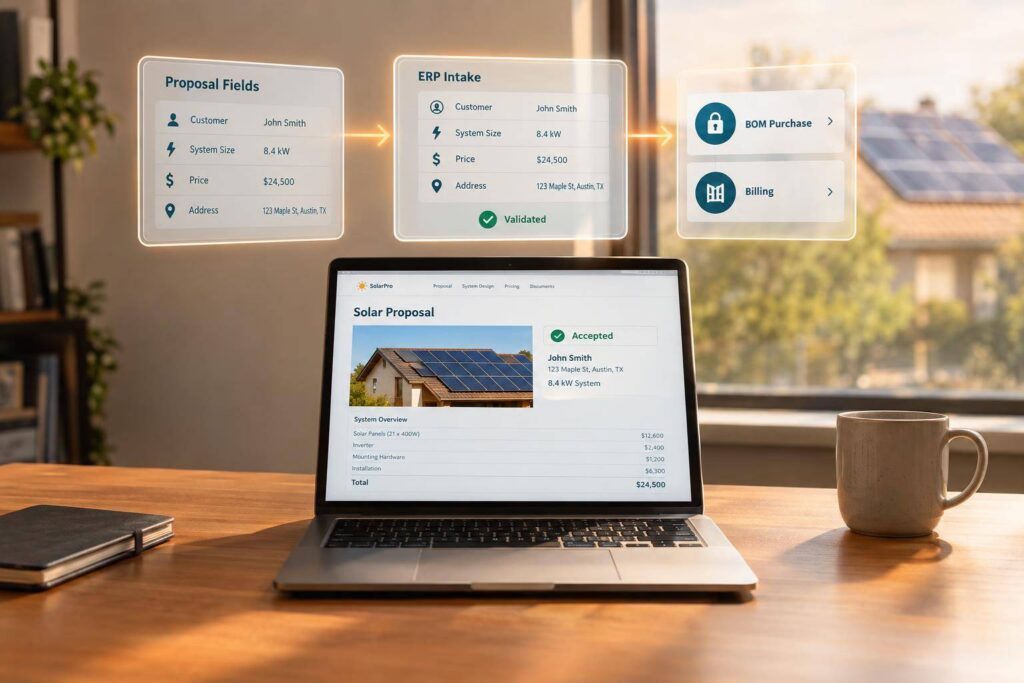
I treat an accepted solar proposal as a starting point – not permission to purchase materials or send invoices. Before creating ERP records, I check the signed contract, customer ID, approved design, BOM, and payment terms.
The split is simple: your proposal tool owns the deal and design data. ERP handles project work and inventory alongside finance. Here’s how I keep that handoff on track:
- Map the data: Define required fields, record IDs, approval checks, and who fixes errors.
- Validate the deal: Match customers, create linked sales orders and projects, and prevent duplicates when transfers retry.
- Control releases: Purchase from the final approved BOM and bill only when signed terms allow. Creating an invoice is not the same as recognizing revenue.
- Test before scaling: Run 5–10 end-to-end flows, including revisions, cancellations, and retries. Review the results and integration scope with Blu Banyan.
My rule: <u>transfer approved data without rekeying, but keep purchasing and billing behind separate approval gates.</u>
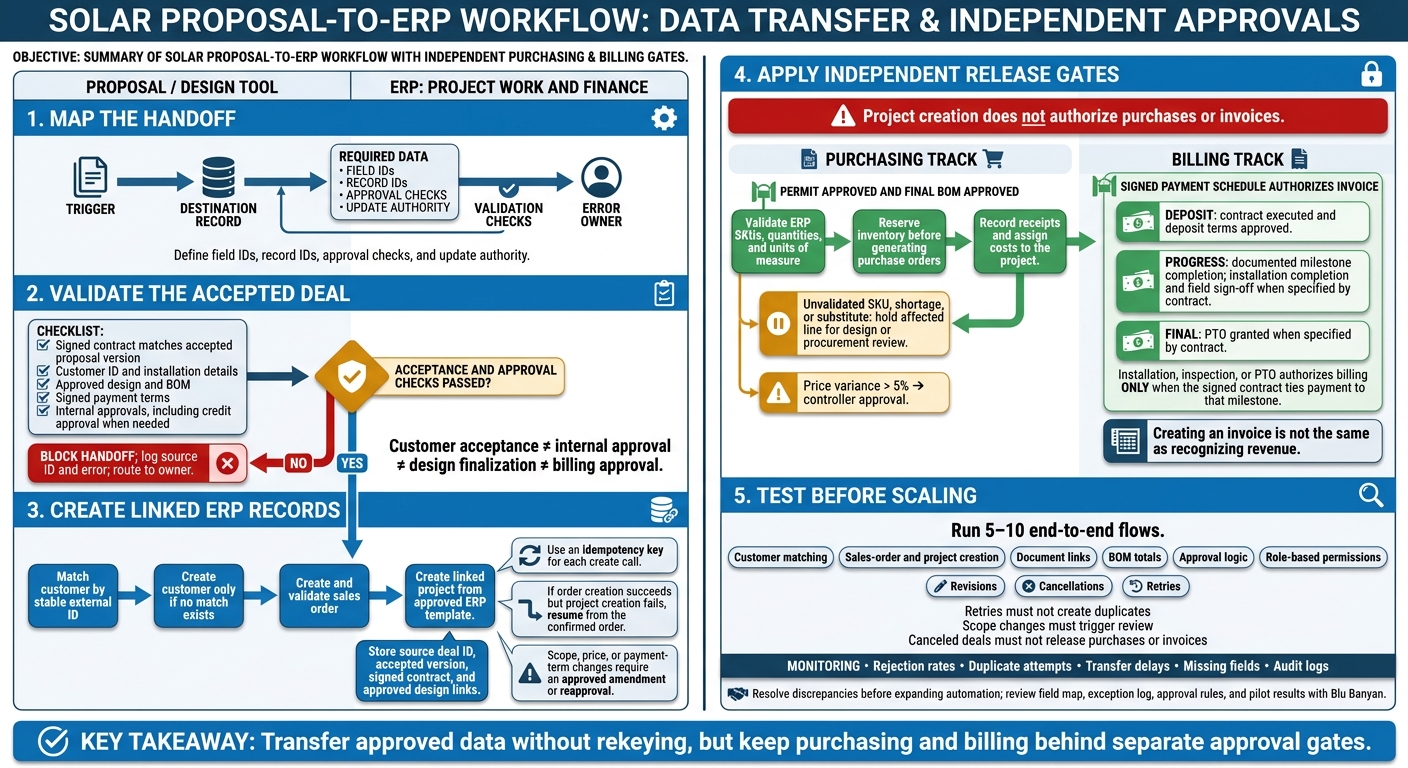
Step 1: Map Workflows and Data Fields
Build a handoff map before configuring the integration. For every transfer, identify the trigger, destination record, required data, validation checks, and person responsible for fixing errors. If validation fails, stop the transfer and log the source ID and error. Begin with the first ERP record created after acceptance.
Map the Workflow From Proposal to Billing
Keep customer acceptance, internal deal approval, design finalization, and billing milestone approval separate. Each is its own event. Use the workflow map to define when records can move to the next stage.
| Trigger | Source system | Destination record | Transferred data | Owner | Exception path |
|---|---|---|---|---|---|
| Customer signs contract | Proposal tool | Sales order | Customer info, BOM, pricing, financing terms | Sales rep | Credit check fails → return to sales |
| Sales order approved | ERP | Project record | Site address, milestones, task templates, budget | Project manager | Missing site data → return to design |
| Design finalized | Proposal / design tool | Sales order update | Finalized BOM, equipment specs | Design engineer | Equipment out of stock → procurement alert |
| Permit approved | AHJ registry / ERP | Purchase order | Final BOM, vendor details | Procurement team | Price variance > 5% → controller approval |
| Install marked complete | Mobile field app | Project task | Status, labor hours, serial numbers, photos | Field supervisor | Inspection fails → reschedule repair |
| PTO granted | Utility notification | Invoice | Final balance, milestone completion date | Controller | Payment dispute → collections review |
Track release conditions separately from triggers. Purchasing may need both the final BOM and permit approval. Billing must follow the signed payment schedule. Installation completion, inspection, or PTO should authorize an invoice ONLY when the contract ties payment to that milestone.
Apply this same trigger-to-record logic when mapping fields below.
Map Fields and Assign Data Ownership
Build a field dictionary alongside the workflow map. The destination names below are labels – map each one to its ERP field ID. Specify whether a value is copied once, synchronized through an approved revision, or calculated by the ERP.
| Proposal field | ERP destination field | Data type | Transformation rule | Required status | Update authority | Validation rule |
|---|---|---|---|---|---|---|
| Customer ID | Customer external ID | String | Direct map; prevent duplicates | Required | System | No duplicate IDs |
| Accepted proposal ID | Sales-order external ID | String | Direct map; copy-once | Required | Sales rep | Match signed contract |
| Installation address | Project site address | Address | Standardize via AHJ Registry or USPS API | Required | Design | Verify via AHJ Registry |
| System size (kW) | Total kW | Decimal | Round to 2 decimal places | Required | Design | Must match BOM total |
| Estimated yield | Annual kWh | Integer | Direct map | Optional | Design | Positive integer |
| Equipment list (BOM) | Sales-order items | List/sublist | Sync with ERP inventory item IDs | Required | Procurement | Must exist in inventory |
| Design version | Project document link | URL or file | Link to latest design imagery or PDF | Required | Design | Must match approved revision |
| Total contract price | Sales-order amount | Currency | Format as USD, such as $125,000.00 | Required | Sales rep | Match financing total |
| Financing provider | Project financier | Picklist | Map to approved integrated partners | Financed deals | Finance | Provider must be approved |
| Acceptance date | Sales-order date | Date | Format as MM/DD/YYYY | Required | System | Cannot be a future date |
| Payment milestones | Billing schedule; milestone amounts | Controlled list; USD decimal | Copy signed schedule; changes require approval | Before billing setup | Controller | Amounts reconcile to contract |
Scope IDs by source and record type, not by customer name or address. On retries, preserve accepted IDs and signed terms. Keep approved design revisions, inventory availability, purchasing status, tax calculations, and invoice balances under solar accounting and finance ERP control.
Step 2: Validate Deals and Create ERP Records
Check Deal Data and Match Customers
Use the field map from Step 1 to check the accepted deal before creating SolarSuccess ERP records. Confirm that the signed contract matches the accepted proposal version and that all required internal approvals are complete, including credit approval when needed.
Require customer and installation details, the final bill of materials (BOM), and approved design documents. Keep the sales scope separate from the procurement BOM.
Match the customer using a stable external ID from the proposal system. Create a new customer only if no match exists. Attach or link the signed contract and approved design documents. A DocuSign integration can help verify the contract [1].
Create the sales order for that customer. Check its lines, totals, and required documents before creating the linked project from the approved ERP template. Store the source deal ID, accepted version, and document links on the ERP records.
Set Rules for Approvals, Retries, and Changes
Failed acceptance or approval checks must block the handoff. After acceptance, any change to scope, price, or payment terms requires an approved amendment or reapproval. Keep the original agreement and revision history.
Use an idempotency key for each create call to prevent duplicate ERP records. If order creation succeeds but project creation fails, resume from the confirmed order rather than creating another one.
Limit retry updates to proposal-owned fields, and log transfer status and errors for auditability. Once the order passes validation, ERP can create the project and control purchasing and billing in Step 3.
Step 3: Set Up Projects, Purchasing, and Billing
Project setup, purchasing, and billing need separate release controls. A signed deal can create a project record without approving purchases or invoices. Define each release in ERP:
| Event | Required Source Status | ERP Action | Accountable Team | Exception Handling |
|---|---|---|---|---|
| Project setup | Sales order approved | Create project record; sync customer, site, budget, and BOM | Sales / Project Manager | Block setup if project data is missing |
| Purchasing release | Permit approved and BOM finalized | Generate purchase orders; reserve inventory | Procurement Team | Flag SKU shortages or price variances |
| Deposit billing | Contract executed and deposit terms approved | Generate deposit invoice | Finance / Controller | Hold payment-dependent tasks until payment is confirmed |
| Progress billing | Install complete and field signed off | Initiate progress invoice | Field Supervisor / Finance | Hold for missing photos or work logs |
| Final billing | PTO granted | Release final invoice | Finance / Collections | Flag AHJ inspection failures or utility delays |
Create Project Records and Track Costs
Create the ERP project record using the validated customer, contract, and BOM data from Step 2. Apply the ERP project template with the approved customer, site, budget, and project manager data. Fill in the customer ID, site address, approved BOM, and payment terms from the mapped proposal fields.
Keep estimated project costs in the budget until the work is completed and approved. The project manager maintains schedules, milestones, and task updates in ERP. Check permit, survey, and inspection status before releasing work that depends on them.
Release Purchasing From the Final BOM
Use the frozen, approved proposal BOM to map proposal SKUs, quantities, and units of measure to validated ERP items. Reserve inventory before generating purchase orders. If a SKU hasn’t been validated, is short, or needs a substitute, hold that line and send it back for design or procurement review.
Record receipts against the purchase orders and assign costs to the project budget. Once project setup and purchasing releases are controlled, billing follows the signed payment schedule.
Approve Billing by Terms and Milestones
Map the approved pricing and signed payment schedule from Step 1 into ERP billing terms. Deposit, progress, and final invoices must follow proposal-approved milestones, not ad hoc project updates.
Keep deposit billing separate from milestone billing. For installation- or PTO-based milestones, invoice only after documented installation completion or PTO, with evidence to support the release.
Invoice generation is not revenue recognition. Keep it separate from revenue recognition and other ERP accounting rules.
Conclusion: Test Controls Before Expanding Automation
Once your workflow map and field dictionary are in place, run a controlled pilot before expanding automation. An accepted proposal must still pass duplicate checks, finalized BOM purchasing controls, and billing approvals.
Pilot the Integration and Monitor Transfers
Test 5–10 end-to-end flows across a limited set of projects. Check customer matching, sales-order and project creation, document links, BOM totals, and approval logic before scaling. Reconcile proposal totals with ERP orders, and check approved equipment quantities against procurement requirements.
Include revisions, cancellations, and retries in your tests. Retries must not create duplicates. Scope changes must trigger review, and canceled deals must not release purchases or invoices. Also test role-based permissions and purchasing and billing approval gates.
Give each workflow a process owner and each exception an owner. Monitor rejection rates, duplicate attempts, transfer delays, missing fields, and audit logs. Expand only when discrepancies are resolved and the tested handoffs consistently meet your acceptance criteria.
Review Integration Requirements With Blu Banyan
Blu Banyan‘s SolarSuccess is a NetSuite-based ERP for solar installers. Blu Banyan provides implementation, customization, and integration services.
Use your pilot results to check what should be automated next. Bring your field map, exception log, approved deals, approval rules, and pilot results to Blu Banyan for review. Confirm the integration scope, configuration requirements, and who owns each exception.
FAQs
How do I handle BOM changes after purchasing starts?
When a bill of materials (BOM) changes after purchasing begins, SolarSuccess handles updates through integrated change order workflows. Project-specific document management and version tracking keep BOM revisions in sync with procurement schedules and financial records.
The platform automatically adjusts procurement requirements and inventory needs in real time to prevent over-ordering. Tracking each revision keeps project costing and profitability data accurate throughout the project.
What if my ERP transfer only partially succeeds?
A partially successful ERP transfer usually points to a data synchronization issue that needs immediate attention. Blu Banyan’s SolarSuccess, built on NetSuite, uses stage-gate workflows to check required data before a project moves forward. These checks keep incomplete records from triggering procurement or billing.
If a transfer fails, the platform’s integrated architecture helps teams find missing information in the records. That keeps sales, finance, and other departments working from a single source of truth.
How do I handle cancellations after a deposit is paid?
Update the project status in the CRM to automatically notify the billing team so they can process any needed refunds or customer account adjustments.
SolarSuccess connects sales orders, project tasks, and accounting events in your ERP. Its cancellation workflow lets you reverse project milestones and financial records, stop procurement, update inventory availability, and adjust financial reporting. That keeps your financial records in step with changes to the project.
